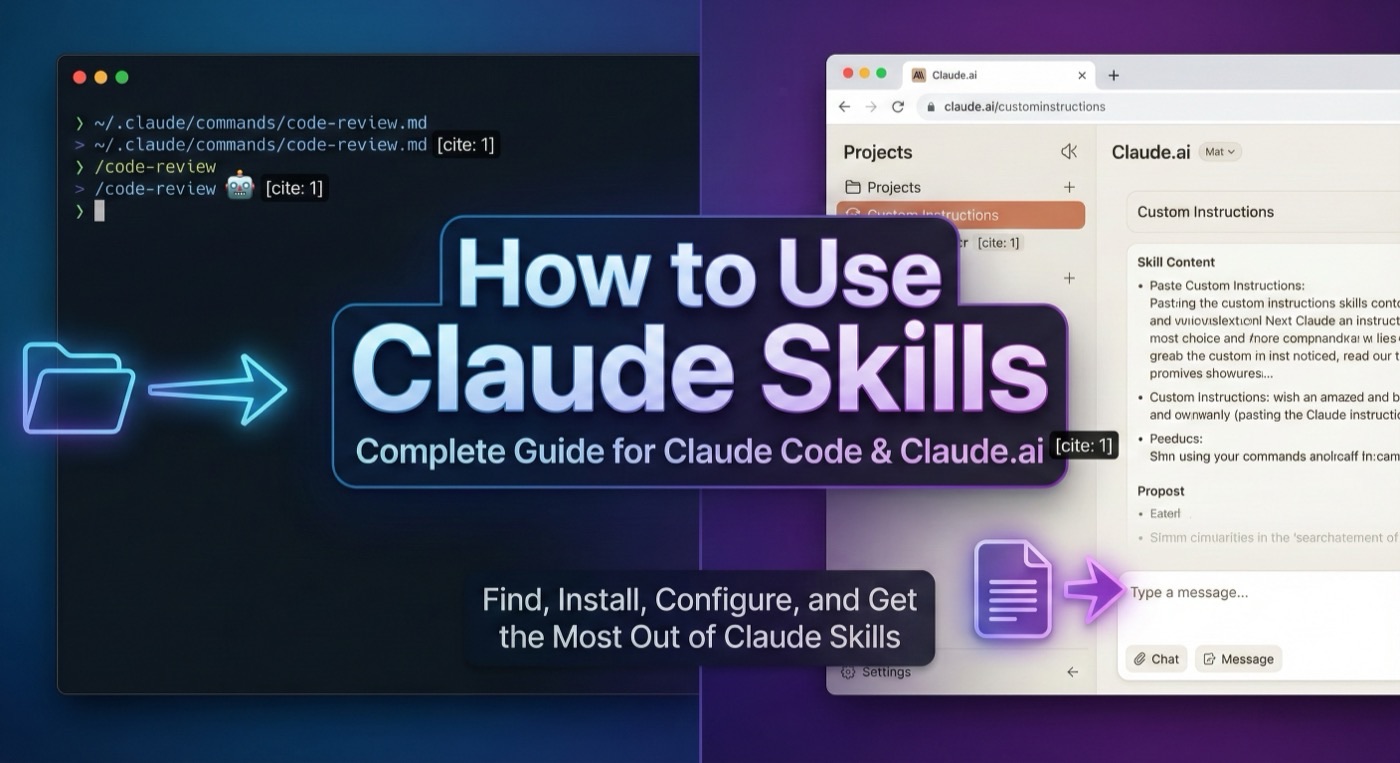
How to Use Claude Skills: Complete Guide for Claude Code and Claude.ai
Learn how to use Claude Skills in Claude Code and Claude.ai. A step-by-step guide to finding, installing, configuring, and getting the most out of Claude Skills.
How Do Claude Skills Work?
Claude Skills are structured instruction sets that shape how Claude approaches specific tasks. Instead of relying solely on general knowledge, Claude Skills give Claude a defined workflow, domain-specific rules, and curated examples that guide every response within that context.
When you use Claude Skills, you are giving Claude a role and a process. Each Claude Skill file — a markdown document with frontmatter metadata — is loaded into the context, telling Claude what to do, in what order, and what constraints to respect. The result is consistent, high-quality output that reflects your team's standards.
Claude Skills do not require plugins, API keys, or external services. They work through Claude's native ability to follow structured instructions. This makes Claude Skills portable, transparent, and easy to customize for any workflow.
How to Use Claude Skills in Claude Code
Claude Code is the primary environment for developers who work with Claude from the command line. Learning how to use Claude Skills here is straightforward once you understand the file system convention.
Step 1: Find and Download Claude Skills
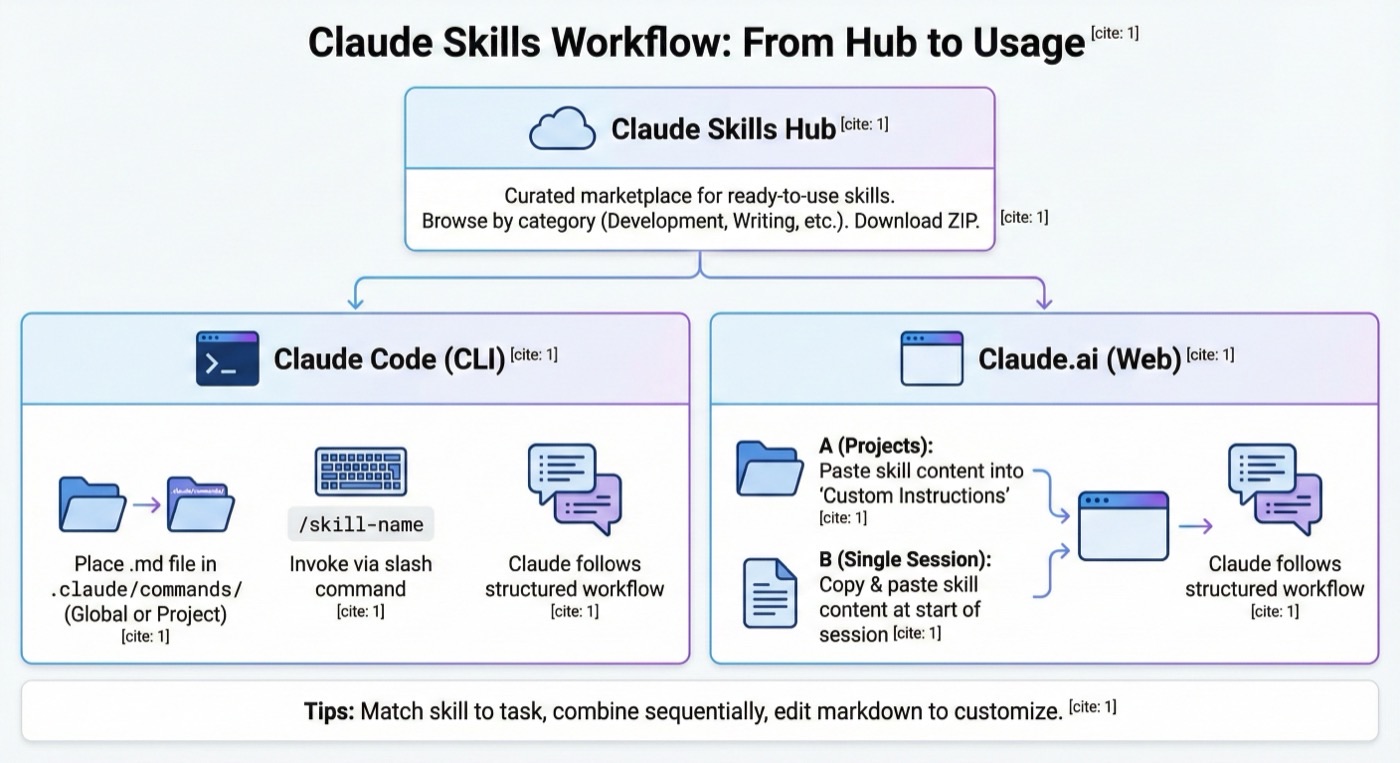
Browse the Claude Skills Hub to find Claude Skills that match your needs. Each skill listing includes a description, category tags, and a downloadable ZIP. Click the skill card to open the detail page and download the ZIP file.
Step 2: Place the Claude Skill File
Claude Code reads Claude Skills from the .claude/ directory. Depending on the scope you want:
- Project-level (applies only to the current repository): place the Claude Skill file inside
<your-project>/.claude/commands/ - Global (applies across all projects): place it inside
~/.claude/commands/
The file should keep the .md extension and a descriptive, kebab-case name such as code-review.md.
Step 3: Invoke the Claude Skill
Once the file is in place, start or restart a Claude Code session in your project directory. You can then reference the Claude Skill as a slash command:
/code-review
Claude will read the Claude Skill file and follow its defined workflow for that task.
Step 4: Verify the Claude Skill Is Working
If the Claude Skill is loaded correctly, Claude's response will reflect the structured process described in the skill file — step-by-step actions, checklists, or domain-specific guidance. If you see a generic response, confirm the file path is correct and that the session was restarted after adding the file.
How to Use Claude Skills in Claude.ai
For users who work through the Claude.ai web interface, Claude Skills can be used by pasting the skill content directly into the conversation context or by using Claude's Projects feature.
Using Claude Skills with Claude Projects
Claude.ai Projects let you attach persistent instructions to a conversation thread. This is the closest equivalent to a loaded Claude Skill file.
- Open Claude.ai and navigate to Projects.
- Create a new project or open an existing one.
- In the project settings, paste the contents of the Claude Skill's markdown file into the Custom Instructions field.
- Start a conversation within that project.
Claude will apply the Claude Skill's instructions to every message in that project automatically.
Using Claude Skills for a Single Session
If you only need a Claude Skill for one conversation, copy the full content of the skill file and paste it at the start of your message:
Use the following Claude Skill definition for this session:

[paste skill content here]

Now, help me review this pull request...
This is a quick way to use Claude Skills without committing the skill to a project.
How to Use Claude Skills from Claude Skills Hub
Claude Skills Hub is a curated marketplace where developers publish ready-to-use Claude Skills. Every listing includes a description, category tags, and a downloadable ZIP so you can start using Claude Skills in seconds.
Finding the Right Claude Skills
Use the explore page to search by keyword or browse by category. Categories cover areas including:
- Development: code review, test-driven development, debugging, refactoring
- Writing: documentation, technical writing, content editing
- Productivity: planning, task breakdown, meeting summarization
- Office and Data: spreadsheet analysis, report generation
Evaluating Claude Skills Before Installing
Read the skill's description and source markdown before installing. A well-authored Claude Skill clearly defines its intended use cases, step-by-step workflow, and any rules or constraints. If the workflow matches your needs, the Claude Skill is ready to use. If not, the plain-text format makes it easy to adapt.
After finding what you need, browse all Claude Skills to discover related options.
Tips for Getting the Most Out of Claude Skills
Match the Skill to the Task
Claude Skills are purpose-built for specific contexts. Using a code review skill for creative writing, or a brainstorming skill for debugging, will produce less useful results. Select the skill that matches the actual task and switch between skills as your work changes.
Combine Skills Sequentially
Claude Skills work well in sequence. A common pattern when learning how to use Claude Skills is chaining them:
- Use a feature design skill to write a specification.
- Use a TDD skill to implement the feature with tests.
- Use a code review skill to verify quality before committing.
Each skill sharpens a different phase of the work.
Edit Skills to Fit Your Standards
Claude Skills are plain markdown files. If a skill's workflow is close but not quite right for your team, open the file and adjust it. You might change the order of steps, add a rule about preferred libraries, or insert a checklist item. Customized skills produce more relevant output than unmodified ones.
Keep Skills Focused
A skill that tries to cover too many scenarios often covers none of them well. If you find yourself adding many conditional branches, consider splitting it into two or three narrower Claude Skills instead.
Troubleshooting
The skill does not seem to be active in Claude Code.
Confirm the file is saved in .claude/commands/ with a .md extension. Restart the Claude Code session after adding the file.
Claude is not following the skill's workflow. Check that the file is well-formed markdown with a clear workflow section. Vague instructions produce inconsistent behavior.
The skill works inconsistently across sessions. Long conversation histories can dilute the influence of skill instructions. Start a fresh session or re-paste the content to bring it back to the top of the context.
I downloaded a ZIP but I am not sure which file to use.
Open the ZIP and look for a .md file inside a .claude/commands/ directory. That is the skill definition file.
A skill from Claude Skills Hub does not match my workflow. Edit the markdown file directly. Claude Skills are designed to be modified. Start by adjusting the workflow steps, then refine the rules.
Now you know how to use Claude Skills in Claude Code, Claude.ai, and from Claude Skills Hub. For more ways to extend Claude's capabilities, visit the Claude Skills Hub or read our guide on how to install Claude Skills and how to create Claude Skills.